# Credit Card Formatting Using IValueConverter In XAML
As I mentioned in my [last article](https://blog.vikassingh.info/how-to-use-ivalueconverter-for-value-conversion-in-cxaml), when you are designing UI, sometimes you may find a scenario where you need to transform an user entered value to another form to improve the user experience and present it in a more friendly way.
For example, you may want to format the below credit card number:
```
4111111111111111
```
to something like below to improve the user experience:
```
4111-1111-1111-1111
```
This article demonstrates how you can use a ValueConverter in XAML to achieve above formatting.
First, you will need to create a value converter which takes a string as input and then returns an auto-format credit card number string, as well as the other way around.
You can follow my below article for a guide on - how to create a Value Converter in C#:
%[https://blog.vikassingh.info/how-to-use-ivalueconverter-for-value-conversion-in-cxaml]
Now, once you have created a value converter for e.g. **CreditCardFormattingConverter**.
You will need to add the above converter to the **App.xaml** (or you can add it to XAML page where you want to use).
I personally prefer to add inside the App.xaml for better handling of all converters at one place.
```
```
Now, you can use the above converter in any XAML page where you want to format a credit card number by adding below converter to the control:
```
Converter={StaticResource AppCreditCardFormattingConverter}
```
See below example of a textbox with converter:
```
```
Here's the sample running:
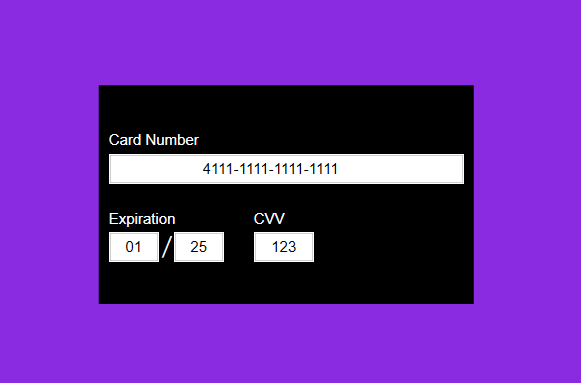
*Note: I added two more fields (Expiration and CVV) in my demo app which is not using value converter.*
You can modify this converter for formatting a telephone number or for any other formatting as per business need.
For e.g. when user enter
``` 123456789``` you can show it like this in the screen ```+91-12345-67890```
Similarly, you can also use a value converter to set visibility of some control based on the user input.
For e.g. you can create a **StringToVisibilityConverter** and check if the input string is empty or null then hide some control (like a ```TextBlock```) in the UI and only show that ```TextBlock``` when the input string holds some value.
I hope, this example is helpful in understanding how to use value converter in XAML.